Lexmark Printer Drivers & Software Download Guide (Setup + Fixes – 2025)
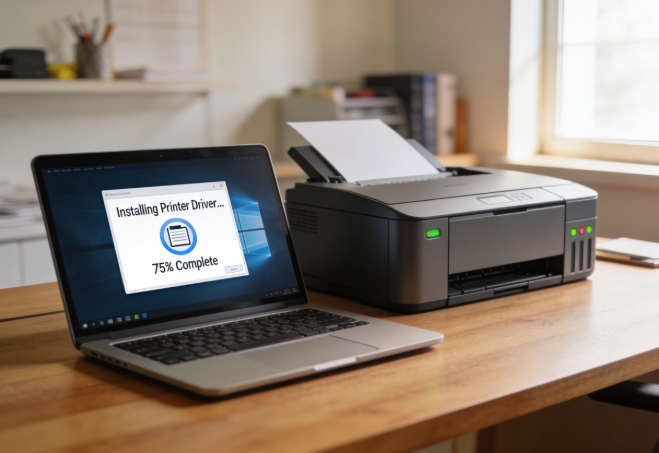
If you recently purchased a Lexmark printer or your existing printer suddenly stopped responding, the problem is usually connected to the driver. A printer driver acts as a translator between your computer and the printer. Without the correct driver, your device cannot communicate with the printer—resulting in errors like “Driver Not Available,” “Printer Offline,” or “Printer Not Detected.”
This guide explains, in simple and practical language, how to download, install, update, and fix Lexmark printer drivers on Windows and macOS. It also covers WiFi setup, USB installation, Universal Print Driver usage, mobile printing, and common troubleshooting tips.
What Are Lexmark Printer Drivers?
A printer driver is a small software program that helps your computer understand your printer’s functions. Think of it as a translator—your computer sends a print command in its own language, and the driver converts it into instructions your Lexmark printer can follow.
Without the correct driver:
- Your printer may not respond
- Features like scanning may not work
- You may see repeated connection or printing errors
Common Types of Lexmark Drivers
- Universal Print Driver (UPD)
A single driver that supports dozens of Lexmark models. Ideal for offices with multiple printers. - PCL Drivers
Great for text documents and fast, everyday printing. - PostScript (PS) Drivers
Recommended for graphics, images, and PDF-heavy tasks. - Scan Drivers
Required if your printer includes a scanner or multifunction features.
Download Lexmark Printer Drivers (Official Sources)
Always download Lexmark drivers directly from the official Lexmark Support Website.
Third-party sites often provide outdated or unsafe files.
Universal Print Driver (UPD)
Useful if you don’t know your exact model or if you manage multiple printers.
The UPD supports printing for a wide range of Lexmark devices.
Model-Specific Drivers
Always preferred for stability and full feature support.
Choose this option if you know your exact printer model, such as Lexmark MC3224, Lexmark B2236dw, etc.
Scanner Drivers
Required for scan-enabled printers.
These ensure the scanner communicates properly with your computer.
Lexmark Software for Windows & Mac
Lexmark also offers additional software tools to help you:
- Monitor ink/toner levels
- Manage print settings
- Troubleshoot errors
- Configure WiFi or USB printin
For cartridge compatibility, replacement steps, and print quality improvement, refer to our detailed
Lexmark ink and toner guide.
For cartridge compatibility, replacement steps, and print quality improvement, refer to our detailed
Lexmark ink and toner guide.
How to Install Lexmark Drivers on Windows
1. USB Installation
This is the quickest method and works for almost all models.
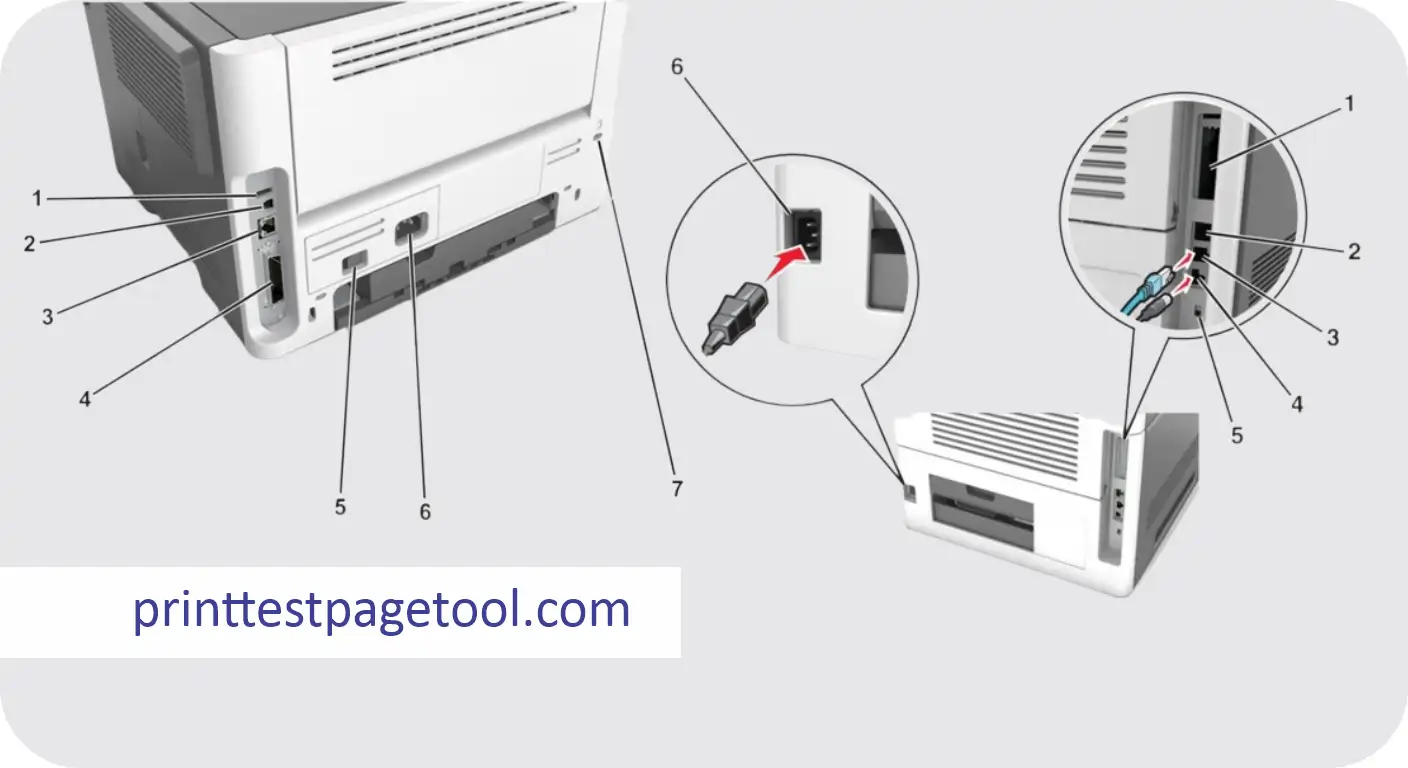
- Connect the printer to your PC using a USB cable.
- Run the driver file you downloaded.
- Follow the on-screen instructions.
- Print a test page to confirm successful installation.
2. Wireless (Wi-Fi) Driver Setup
Wi-Fi-enabled printers may sometimes fail to appear during setup due to network issues or IP conflicts.
Follow these steps:
- Make sure your printer is already connected to WiFi.
- Run the Lexmark driver installation tool on your PC.
- Choose Wireless Installation when prompted.
- Select your printer from the list and complete the setup.
If the printer does not appear automatically, you can manually enter its IP address.
3. Manual Driver Installation (Device Manager)
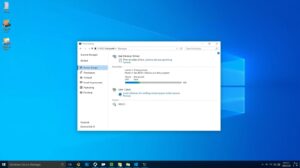
If Windows shows “Driver Not Found” or fails to install automatically:
- Search Device Manager in the Start Menu.
- Look for your printer under Printers or Unknown Devices.
- Right-click → Update Driver.
- Choose Browse my computer.
- Select the folder where your driver file is saved.
Fixing the “Driver Not Available” Error
This error usually indicates:
- The driver is outdated
- The wrong driver was installed
- A Windows update caused a compatibility problem
Solution:
Uninstall the old driver completely → Download the latest official driver → Reinstall.
How to Install Lexmark Drivers on macOS
1. AirPrint Support (No Driver Required)

Many modern Lexmark printers support Apple AirPrint.
If AirPrint is available, your Mac will automatically detect and set up the printer without needing special drivers.
2. Add Printer Using IP Address
If your printer is not detected automatically:
- Open System Settings → Printers & Scanners
- Click Add Printer
- Switch to the IP tab
- Enter your printer’s IP address
- macOS will automatically choose the correct driver or AirPrint option
3. PPD File Installation
Some older Lexmark printers require PPD files to enable advanced features like:
- Duplex printing
- Color profiles
- Tray selection
- Paper type management
PPD files can be downloaded directly from Lexmark support.
Fixing Common Lexmark Driver Problems
1. Printer Not Detected
- Try a different USB cable
- Make sure the PC and printer are on the same WiFi network
- Restart both the computer and the printer
- Ensure the printer is not in Sleep Mode
2. Driver Keeps Uninstalling or Crashing
- Use only official Lexmark drivers
- Disable antivirus temporarily during installation
- Install using Run as Administrator
3. Installed the Wrong Driver
- Remove the device from Windows settings
- Install the correct model-specific driver
4. Printer Stuck on “Spooling.”

- Restart your PC
- Clear the print queue
- Disconnect and reconnect the printer
- Update the driver
5. Universal Driver Not Working
The UPD may not support your specific model.
Solution:
Always switch to a model-specific driver for best results.
Best Lexmark Mobile Apps (Android & iOS)
Lexmark Mobile Print App
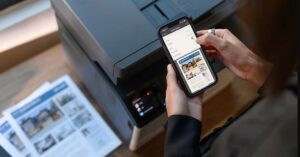
This app allows you to:
- Print directly from your smartphone
- Scan documents to your phone
- Access cloud files and print them instantly
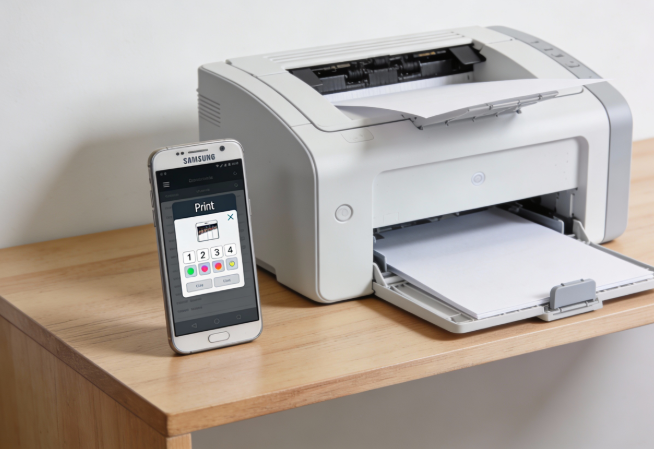
How to Print From Your Phone
- Install the Lexmark Mobile Print app.
- Connect your phone to the same WiFi as your printer.
- Choose any document or image.
- Tap Print.
Scan to Phone
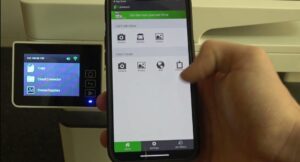
If your printer has scanning capability, you can save scanned files directly to your mobile device through the app.
FAQs
How do I find the correct Lexmark driver for my printer?
Visit the Lexmark Support website, search your model number, and download the official driver.
Why is my Lexmark driver not installing?
You may be using the wrong driver or your operating system may not meet the requirements.
What is the Lexmark Universal Print Driver?
A single driver designed to work with multiple Lexmark models.
How do I uninstall Lexmark drivers completely?
Use Control Panel → Programs & Features on Windows, or remove the printer from System Settings on MacOS.
Are Lexmark printers compatible with Windows 11 and macOS Sonoma?
Yes, most modern Lexmark drivers fully support both operating systems.
For a complete comparison and expert recommendations, check out our detailed guide on the best Lexmark printers for home and office use.