How to Print a Test Page on a Lexmark Printer (Complete Guide)
If your Lexmark printer is printing faded colors, broken lines, or not printing at all — don’t worry! You can easily fix most problems by printing a test page.
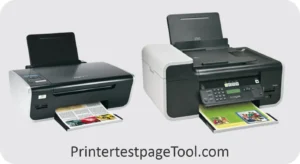
A test page helps you check the printer’s color, ink, and connection. This simple guide will show you how to print a test page on any Lexmark printer, no matter which model you’re using.
What Is a Test Page?
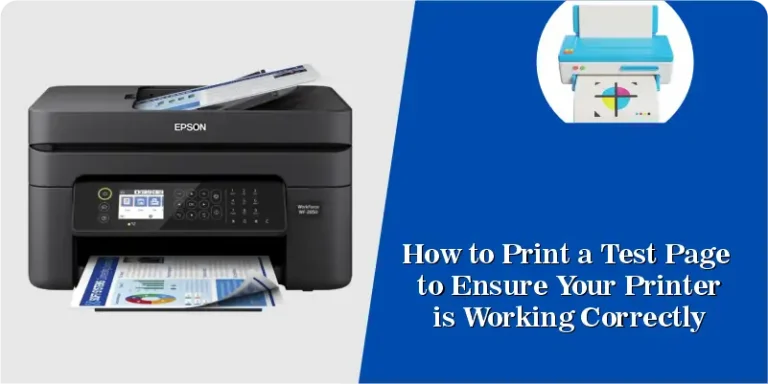
A test page is a special page your printer creates to show how well it can print. It includes different colors, lines, and small text blocks.
What a Test Page Shows You
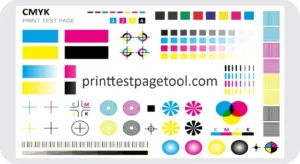
- If the printer’s colors are okay
- If the ink is working
- If the printer is connected correctly
Think of it like a health check-up for your printer.
Why Should You Print a Test Page?
- Check if the printer is working properly
- See if the ink cartridge is empty or clogged
- Find out if colors are missing or faded
- Fix print quality issues quickly
It’s the easiest way to diagnose problems before doing anything else.
How to Print a Test Page (3 Simple Ways)
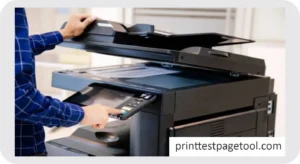
Method 1 – From the Printer’s Control Panel
- Turn on your printer.
- Go to Menu → Reports → Print Test Page.
- Press OK.
Method 2 – From a Windows Computer
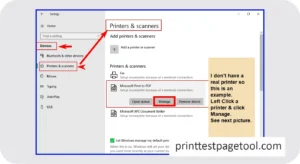
- Open Control Panel → Devices and Printers.
- Right-click your Lexmark printer.
- Select Printer Properties.
- Click Print Test Page.
Method 3 – From a Mac
- Go to System Settings → Printers & Scanners.
- Select your Lexmark printer.
- Click Options & Supplies → Utility → Print Test Page.
How to Print a Test Page by the Lexmark Model
E-Series (E260dn, E234, E321, E323, E360dn)
- Turn on the printer.
- Hold the green “Go” button for 5 seconds.
MS & MX Series (MS310dn, MS312dn, MS810, MX710)
- Open Menu → Reports → Menu Settings Page.
- Select Print.
Color Printers (C543dn, C935, X748de)
- Go to Menu → Reports → Quality Test Pages.
Older Models (Z2420, T430, 2500, 2650, Pro2000)
- Open the Lexmark Toolbox or Printer Software.
- Go to Maintenance / Tools.
- Click Print Test Page.
If the Test Page Doesn’t Print
- Printer is ON and connected
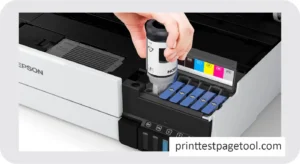
- Cartridges are not empty
- No paper jam
- Restart the printer once
If the issue persists, refer to our “Fix Lexmark Test Page Problems” guide.
How to Keep Your Printer in Good Condition
- Print one test page every week
- Use original Lexmark cartridges
- Clean the printer gently
- Check for firmware updates
Download a Free Test Page
If your printer can’t print its own test page:
- Visit Printatestpage.com
- Download the Color Test Image
- Press Ctrl + P to print
This works like an official test page.
Frequently Asked Questions (FAQs)
1. When should I print a test page?
Whenever prints appear faded, misaligned, or with missing colors.
2. Does a test page waste ink?
No — it uses very little ink.
3. My printer prints only a test page. What should I do?
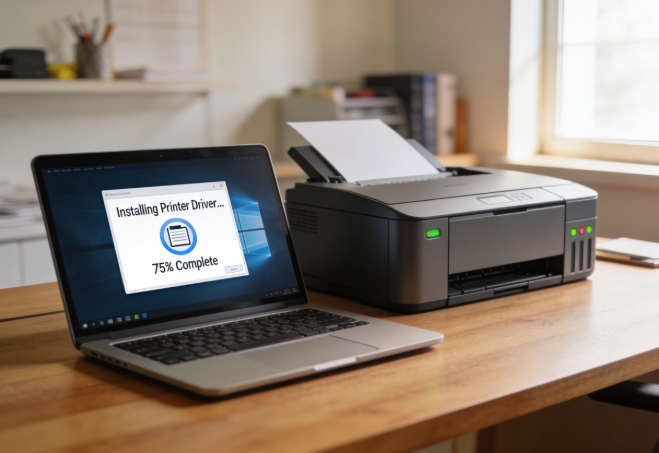
Restart and reinstall the driver.
4. Are all Lexmark test pages the same?
Slightly different, but the purpose is the same.
5. Can I print a test page from my phone?
Yes, using the Lexmark Mobile App.
Summary
Printing a test page on a Lexmark printer is easy and helps you:
- Check color
- Check ink
- Fix print problems fast
Now you can keep your Lexmark printer working perfectly!
For a complete comparison and expert recommendations, check out our detailed guide on the best Lexmark printers for home and office use.