Samsung Print Service Plugin Not Working? Easy Fix Guide
A few days ago, my Samsung phone suddenly stopped printing. The printer was fine, WiFi was working, but nothing came out. The problem was simple: Samsung Print Service Plugin was not working properly. If you are facing the same issue, this guide will help you fix it step by step.
This article is written in very simple English so anyone can follow it, even if you are not good with technology.
What Is Samsung Print Service Plugin?
Samsung Print Service Plugin is a small but important app that allows your Samsung phone to communicate with your printer. If this plugin stops working, your phone will not find the printer or will fail to print.
Signs That the Plugin Is Not Working
- Printer does not appear on the phone
- Print option is missing
- Print job gets stuck
- Nothing happens after tapping Print
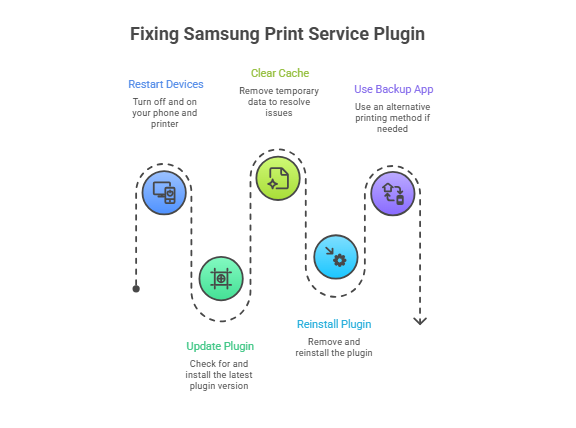
Fix 1: Restart Phone and Printer (Always Try First)
This simple step fixes the problem for many people.
- Turn off your printer and wait 10 seconds.
- Restart your Samsung phone.
- Turn the printer back on.
- Try printing again.
Fix 2: Update Samsung Print Service Plugin
Outdated plugins often stop working after phone updates.
- Open Google Play Store.
- Search for Samsung Print Service Plugin.
- Tap Update if you see it.
- Restart your phone after updating.
Fix 3: Clear Cache (Safe Method)
Clearing cache removes temporary errors without deleting settings.
- Open Settings → Apps.
- Find Samsung Print Service Plugin.
- Tap Storage.
- Tap Clear Cache only.
Important: Do not tap “Clear Data”. Only clear cache.
Fix 4: Reinstall the Plugin
If nothing works, reinstalling almost always fixes the problem.
- Uninstall Samsung Print Service Plugin.
- Restart your phone.
- Install it again from Play Store.
- Restart your phone once more.
Fix 5: Use Another Printing App (Backup Option)
If the plugin still fails, you can use Mopria Print Service or your printer brand’s official app. Many printers work fine with these apps.
Related Guides (Helpful)
If you are new to mobile printing, first read our beginner guide on
how to print from Samsung phone.
If your phone cannot find the printer, follow this guide to
add printer to Samsung phone.
Troubleshooting Tip
After fixing the plugin, always test printing with one page first to make sure everything is working correctly.
For official instructions, Samsung also explains mobile printing and printer setup on its
official Samsung Support page, where the company provides updated guidance for Galaxy phones.
If you want to make sure your printer is working correctly, you can
run a quick printer test on our homepage tool before moving to the FAQs.
FAQs
Why does Samsung Print Service Plugin stop working?
It usually happens after a phone update, when the plugin is outdated, or when it is turned off by mistake.
Is Samsung Print Service Plugin necessary for printing?
Yes. Most Samsung Galaxy phones need this plugin to print properly with WiFi printers.
Can I print without Samsung Print Service Plugin?
Yes. You can use Mopria Print Service or your printer brand app as an alternative.