Printing How-To Guides 2026: Step-by-Step Printing for Home, Office & Custom Products
Printing in 2026 is no longer limited to basic document output. Users now print PDFs, photos, marketing material, personalized products such as mugs, and mobile-based content using advanced printers and smart devices.
With evolving printer technology, incorrect settings, mismatched paper types, or lack of printing knowledge can result in wasted ink, poor print quality, cropped layouts, and frequent printer errors.
This pillar guide is based on real-world printing experience, expert-tested practices, and updated 2026 printing standards. It helps beginners, office users, and small business owners handle everyday printing tasks efficiently without costly mistakes.
How to Print a PDF on MacBook (Step-by-Step – 2026)
Printing PDFs on macOS is simple, but many users unknowingly select incorrect scale or layout options that lead to cut margins or resized text.
Step-by-Step Process
- Open the PDF using Preview or your web browser
- Press Command + P
- Select the correct printer
- Confirm paper size (A4 or Letter)
- Set scale to 100%
- Choose Actual Size instead of Fit to Page
- Click Print
Expert Insight: From practical experience, most Mac users face layout issues because “Fit to Page” automatically resizes content. For invoices, certificates, and official documents, Actual Size always delivers accurate results.
Related Tools & Guides
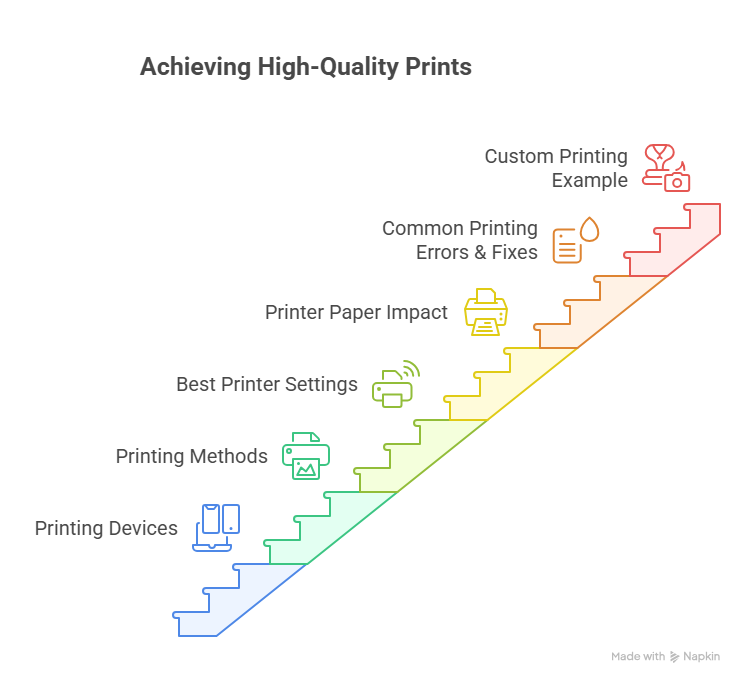
How to Print Photos on Coffee Mugs at Home (2026 Guide)
Custom mug printing has become one of the fastest-growing home and small-business printing trends.
What You Need
- Sublimation printer
- Sublimation ink
- Sublimation paper
- Heat press machine
- Sublimation-coated mug
Printing Process
- Edit and mirror the image
- Print the design on sublimation paper
- Wrap the print tightly around the mug
- Heat press at 180–200°C for 180 seconds
- Allow the mug to cool before removing paper
Important Warning: Standard inkjet printers and regular paper are not suitable for permanent mug printing. The design will fade after washing.
Expert Tip: Proper sublimation printing lasts over 100+ washes when correct temperature, pressure, and ink are used.
Read the complete guide here:
How to Print Photo Mug at Home
Different Methods of Custom Printing
- Inkjet Printing: Best for home use and photo printing
- Laser Printing: Ideal for office documents and bulk text printing
- Sublimation Printing: Mugs, apparel, and personalized gifts
- UV Printing: Promotional and rigid items
- Screen Printing: Large-scale clothing production
Each printing method differs in cost, durability, and output quality, making the right selection essential for professional results.
Device-Wise Printing Guide (Mobile, Laptop & Tablet)
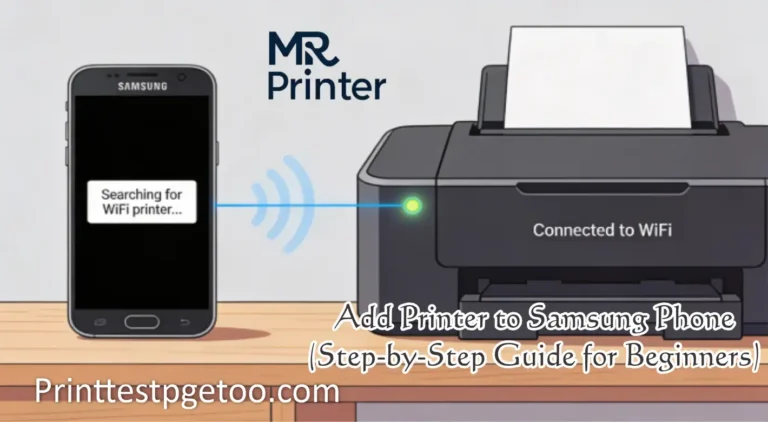
Mobile Printing
- Android users rely on manufacturer printing apps
- iPhone users use AirPrint-compatible printers
Common Issue: Mobile printing apps often auto-adjust margins, causing content cuts. Always preview before printing.
Laptop & Tablet Printing
- Laptops: Full DPI, scaling, and layout control
- Tablets: Limited customization, requiring extra caution
Recommended Printer Settings for Best Output (2026 Standards)
- Text documents: 300 DPI
- Images & photos: 600 DPI
- Color mode: CMYK for professional output
- Paper type: Must match printer settings exactly
- Print quality: Always select High instead of Draft
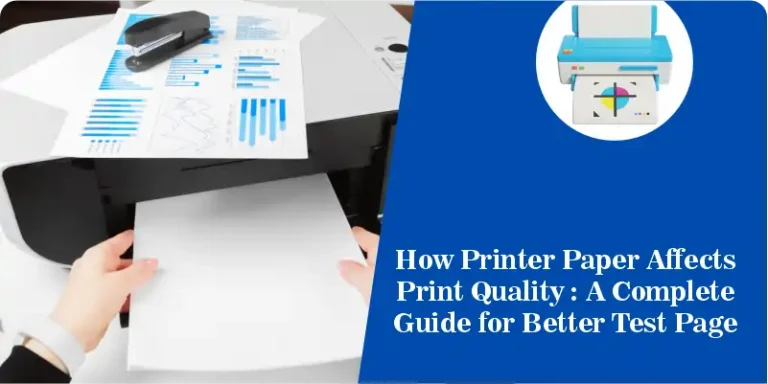
Choosing the correct paper is equally important. Learn more here:
Printer Paper & Print Quality Guide
Common Printing Errors & Fixes
| Issue | Cause | Solution |
|---|---|---|
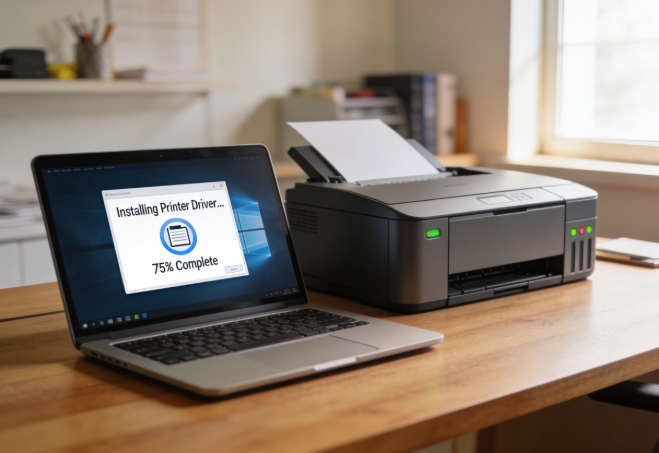
| Blank pages | Driver issue | Reinstall printer driver |
| Blurry text | Low DPI | Increase resolution |
| Paper jams | Wrong paper size | Match paper and tray size |
| Faded colors | Ink problem | Clean print head |
Helpful Internal Resources
Conclusion: Why Printing Knowledge Matters in 2026
Printing has evolved into a technical skill rather than a simple task. Understanding printer devices, paper types, settings, and printing methods helps users save money, avoid errors, and achieve professional-quality output.
This guide reflects real user experience, expert practices, and updated 2026 printing standards, making it a reliable reference for everyday printing needs.
To stay aligned with professional printing standards, manufacturers like Brother also publish detailed guidelines on printer settings, paper handling, and output quality. These references support many of the best practices discussed in this guide and help users understand industry-level printing accuracy.
This makes the guide not only experience-based, but also aligned with widely accepted printer manufacturer standards used globally.