How to Print from Samsung Phone (WiFi, USB, Bluetooth)
Last week, my printer stopped working and I had to print a school document from my Samsung phone. I thought it would be hard. But honestly, it took only a few minutes once I knew the right steps. If you are confused like I was, don’t worry. This guide is written for beginners, even if you have never printed from a phone before.
I will show you three easy ways to print from a Samsung phone: WiFi, USB cable, and Bluetooth. Just follow one method that matches your printer.
Before You Start (Important)
Check these small things first. They save a lot of time:
- Your printer is turned ON (many people forget this)
- Your phone has battery above 20%
- You know how your printer connects (WiFi, USB, or Bluetooth)
- Paper is already inside the printer
If these are ready, let’s print.
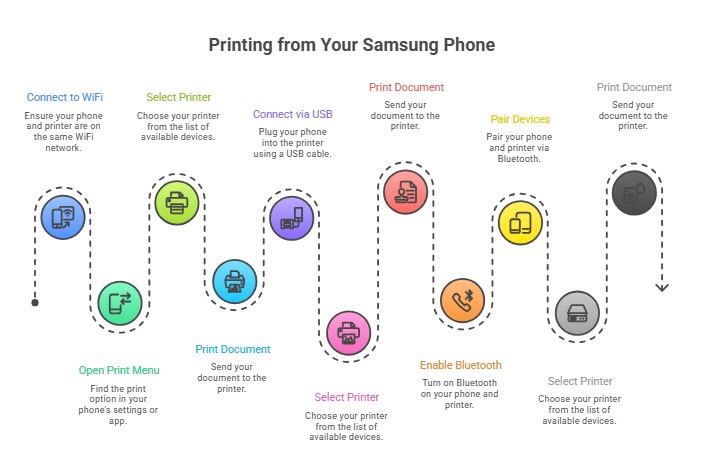
Method 1: Print from Samsung Phone Using WiFi (Most People Use This)
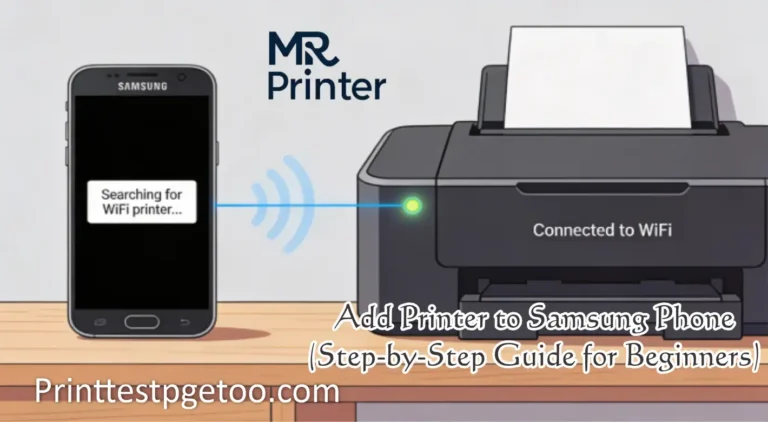
This is the easiest way. No wires. Just make sure both devices use the same WiFi.
Simple Steps
- Connect your printer to WiFi (only once).
- Connect your Samsung phone to the same WiFi.
- Open the photo, PDF, or document you want to print.
- Tap the three dots (⋮) or Share icon.
- Tap Print.
- Select your printer from the list.
- Tap Print again.
Real tip: If the printer does not show, wait 10 seconds and try again. It works most of the time.
Method 2: Print from Samsung Phone Using USB Cable (No WiFi Needed)
This method is best when WiFi is not working. I use it in the office all the time.
You need
- USB cable of your printer
- USB OTG adapter for Samsung phone
Steps
- Connect the USB cable to the printer.
- Connect the cable to your phone using OTG.
- Turn on the printer.
- Open the file you want to print.
- Tap Print.
If your phone asks to install an app, just allow it. This is normal.
Method 3: Print from Samsung Phone Using Bluetooth
This works mostly with small photo printers or portable printers.
Steps
- Turn on Bluetooth on your phone.
- Pair your phone with the printer.
- Open the file you want to print.
- Tap Print and choose the printer.
Note: Bluetooth works best for small jobs. For big documents, use WiFi.
Best App for Printing from Samsung Phone
Samsung phones already have printing built-in. But sometimes you need an extra app.
- Samsung Print Service Plugin (best choice)
- Mopria Print Service
- Your printer brand app
If printing stops working, updating the app usually fixes it.
Common Problems (And Easy Fixes)
Printer not showing on phone
Make sure both phone and printer are on the same WiFi. Restart printer once.
Print button missing
Tap Share icon instead of menu. It appears there sometimes.
Printer prints blank pages
Check ink or toner. This happens more often than you think.
My Personal Tip (Very Important)
When printing from phone, always print one page first. If it looks good, then print everything. This saves paper, ink, and money.
Summary
Printing from a Samsung phone is not hard. Use WiFi if you can, USB if WiFi fails, and Bluetooth for small prints. Follow the steps slowly, and your printer will work.
If you still have trouble, don’t worry. Most printing problems are simple and can be fixed in a few minutes.
For official instructions, Samsung also explains mobile printing and phone-to-printer setup on its Samsung Support page, where the company shares updated guidance for Galaxy phones.
FAQs
Can I print from Samsung phone without WiFi?
Yes. You can print using a USB cable or Bluetooth if WiFi is not available. This is useful when internet is not working.
Why is my Samsung phone not finding my printer?
This usually happens when the phone and printer are connected to different WiFi networks. Make sure both are on the same network and try again.
Which app is best for printing from Samsung phone?
Samsung Print Service Plugin is the best option for most Samsung Galaxy phones because it works with many printer brands.