Lexmark Printer Troubleshooting Guide 2025 | Fix Offline, Driver, and Printing Issues
If your Lexmark printer has suddenly stopped responding, started showing errors, or is printing poorly, don’t worry—most of these problems are simple to fix. Printers often act up due to loose connections, outdated Lexmark printer drivers and software, jammed print queues, or minor mechanical issues.

This guide explains practical, real-world solutions used by home users and IT technicians to solve Lexmark printer problems quickly.
Common Lexmark Printer Issues
Lexmark printers are reliable, but like all devices, they can run into issues. These are the most common problems users report:
• Printer not detected
• Printer showing offline
• Driver error
• Paper jams
• Spooling issues
• Poor or faded print quality
Most of these problems can be fixed within a few minutes.
1. Printer Not Detected

This issue usually happens due to loose cables, faulty USB ports, or the printer being stuck in sleep mode.
Try the following steps:
-
Check all USB and power cables to ensure they are fully connected.
-
Restart both your computer and the printer.
-
Open Device Manager on Windows—sometimes the printer appears under Unknown Devices.
-
If you are connecting the printer for the first time, install the driver before plugging in the USB cable.
Expert Tip:
If the printer does not detect through USB, try switching to a different USB port. This solves the issue in many cases.
2. Printer Showing as Offline
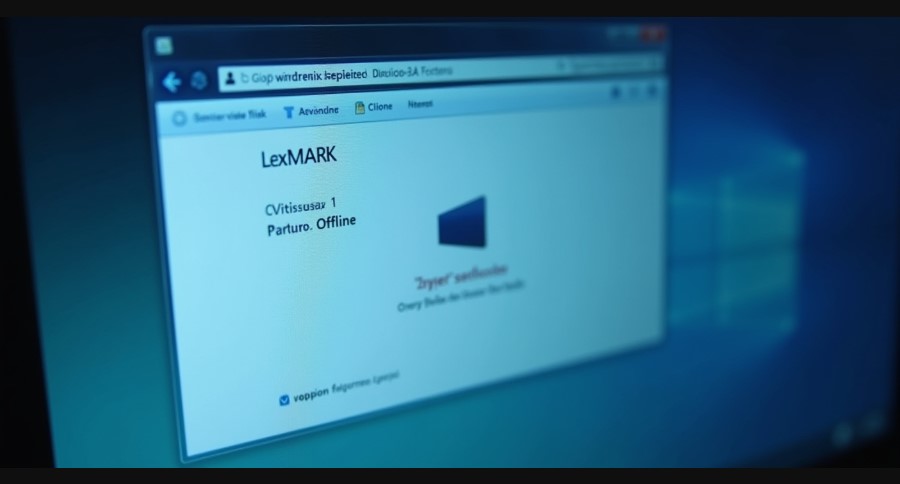
This happens due to network issues or stuck print queues.
Fix:
-
Go to Control Panel → Devices & Printers
-
Right-click the Lexmark printer
-
Click Use Printer Online
-
Clear the print queue if the printer still refuses to respond
Pro Tip:
If you are using WiFi printing, make sure the printer and the computer are on the same WiFi network.
3. Driver Errors (Most Common Issue)
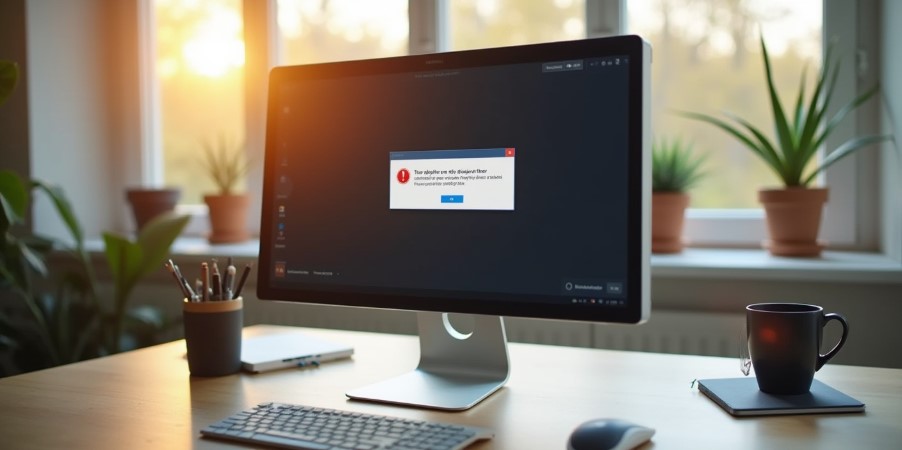
Errors like “Driver Not Available,” “Wrong Driver Installed,” or drivers not installing usually happen because:
• Old drivers were not removed
• Wrong model driver was selected
• Windows updates disabled the driver
Fix:
-
Completely uninstall the old driver
-
Download the correct model-specific driver from the official Lexmark website
-
Restart your PC
-
Install the new driver and reconnect the printer
Warning:
Avoid third-party driver websites. They often contain outdated or unsafe files.
4. Paper Jams
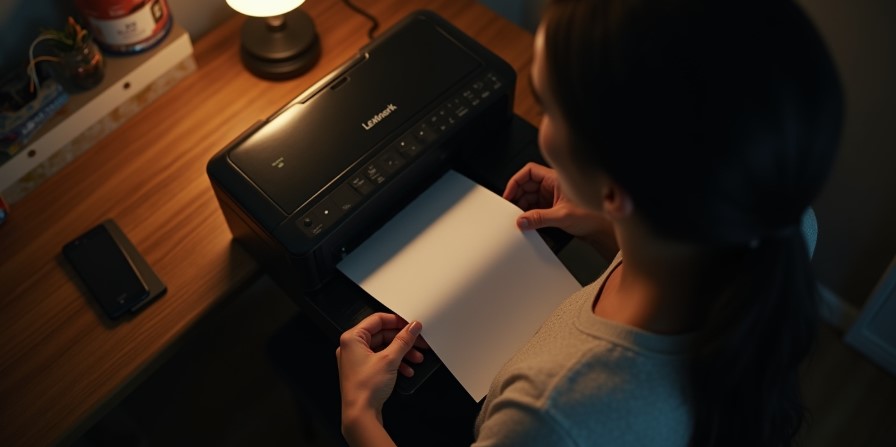
Paper jams usually occur due to low-quality paper, moisture, or dust inside the printer.
How to clear:
-
Turn off the printer
-
Open the paper tray and side panels
-
Gently remove the jammed paper—don’t pull too hard
-
Check for small paper scraps inside the printer
-
Restart the printer once everything is clear
Observation:
If paper jams happen frequently, your printer rollers may need cleaning.
5. Spooling Issues
When the print queue gets stuck, Windows cannot send new jobs to the printer.
Fix:
-
Go to Control Panel → Devices & Printers
-
Open the print queue
-
Cancel all pending print jobs
-
Press Windows + R → type services.msc
-
Restart the Print Spooler service
6. Poor Print Quality
Faded or unclear prints can be caused by:
• Low toner or ink
• Incorrect paper settings
• Dirty print heads
• Weak color calibration
Improve print quality:
-
Use the Clean Print Head option from the Lexmark software
-
Replace empty cartridges
-
Select the correct paper type in printer settings
-
Print a test page to confirm improvements
FAQs
Why is my Lexmark printer not printing?
Most printing issues are caused by driver problems, cable issues, or WiFi connection failures.
How do I fix repeated printing errors?
Clearing the print queue and reinstalling the driver usually fixes such issues.
How do I clear a paper jam?
Turn off the printer, gently remove the stuck paper, and check for small leftover pieces inside.
Q: How can I check if my Lexmark printer is working properly after applying these fixes?
A: You can print a test page on a Lexmark printer to make sure everything is working correctly.
Can I fix driver problems on a Mac?
Yes—macOS often supports Lexmark printers through AirPrint. Otherwise, install the latest PPD or model-specific driver.
For a complete comparison and expert recommendations, check out our detailed guide on the best Lexmark printers for home and office use.