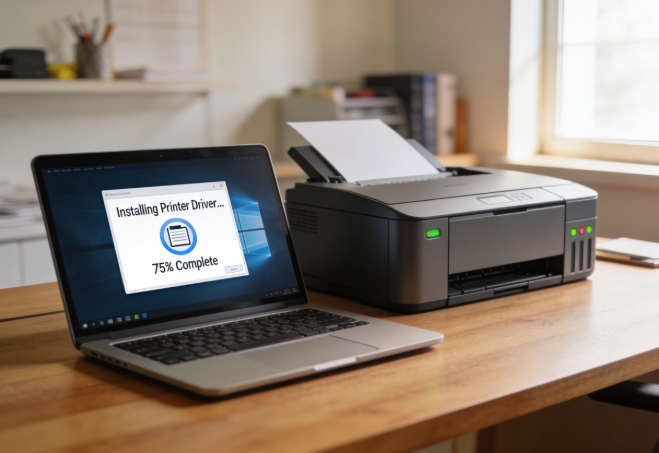
How to Install Samsung Printer Driver (Windows & Mac Guide by a Technician)
One of the most common problems I see is this: the Samsung printer is connected to WiFi, the lights look normal, but the computer says “Printer Offline” or “Driver Not Available.” In most cases, the printer itself is fine. The real issue is the driver.
A printer driver is the small software that allows your computer to talk to the printer. Without the correct Samsung printer driver installed, printing simply will not work — even if the WiFi setup is perfect.
In this guide, I will walk you through exactly how I install Samsung printer drivers for customers, both on Windows and Mac. I will also show you what to check if it still does not print after installation.
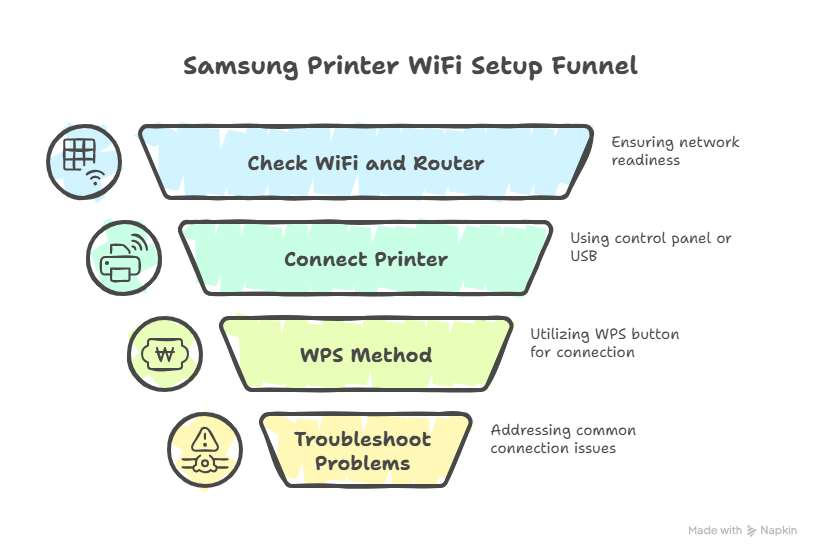
Before Installing the Samsung Printer Driver
Before downloading anything, I always check a few things. This prevents future issues.
- Confirm your Windows or macOS version.
- Remove any old Samsung printer driver already installed.
- Make sure the printer is powered on.
- If using WiFi, confirm the printer is connected to the same network.
Installing a new driver on top of an old corrupted one can cause conflicts. If you previously tried installing and it failed, uninstall first and then restart your computer.
How to Install Samsung Printer Driver on Windows
This method works for Windows 10, Windows 11, and most recent versions.
Step 1: Download the Correct Driver
Go to the official Samsung Support website and search using your exact printer model number. Download the full driver package, not just a basic driver.
Step 2: Run the Installer
Open the downloaded file and allow it to run. If Windows asks for permission, click Yes.
Step 3: Choose Connection Type
You will usually see two options:
- USB connection
- Wireless connection
If your Samsung printer WiFi setup is already complete, choose Wireless. If you are setting up for the first time, USB method is often more stable.
Step 4: Complete Installation
Follow the on-screen instructions. Once installation finishes, restart your computer. I always restart, even if it does not ask. This ensures the driver loads correctly.
Step 5: Set as Default Printer
Go to Control Panel → Devices and Printers. Right-click your Samsung printer and choose “Set as Default Printer.”
Now try printing a test page.
How to Install Samsung Printer Driver on Mac
Mac installation is slightly different, but still simple.
Step 1: Download macOS Compatible Driver
From Samsung Support, download the macOS version that matches your system.
Step 2: Open the Package File
Double-click the downloaded file and follow installation instructions.
Step 3: Add Printer Manually
After installation:
- Open System Settings
- Go to Printers & Scanners
- Click Add Printer
- Select your Samsung printer from the list
If the printer does not appear, check WiFi connection again.
How to Confirm the Driver Is Working
After installation, I never assume it is working. I always test.
- Print a test page from printer properties.
- Check printer status (should show Ready, not Offline).
- Make sure no error lights are blinking.
If you previously completed wireless setup, you can review our
Samsung printer WiFi setup guide to confirm network configuration.
When Driver Installation Fails Repeatedly (Deep Reset Method I Use)
Sometimes you install the Samsung printer driver correctly, follow every step, restart the computer, and the printer still shows offline. In more stubborn cases, the system does not detect the printer at all. When this happens, I do not simply reinstall the driver. I perform a complete cleanup before installing again.
This is the same deep reset method I use when helping customers with persistent driver problems.
Step 1: Remove the Printer from Devices
Open Control Panel and go to Devices and Printers. Right-click on your Samsung printer and choose Remove device. This clears the old configuration from Windows.
Step 2: Uninstall All Samsung Printer Software
Go to Programs and Features and uninstall:
- Samsung printer driver
- Samsung universal driver
- Any Samsung scan or utility software
After uninstalling everything, restart your computer. Restarting is important because Windows may still hold temporary driver files in memory.
Step 3: Restart the Print Spooler Service
This is a step many users skip, but it solves many hidden problems.
- Press Windows + R
- Type services.msc and press Enter
- Find Print Spooler
- Right-click and choose Stop
- Wait a few seconds and click Start again
This clears stuck print jobs and resets the printing service.
Step 4: Install the Driver as Administrator
When reinstalling the driver, right-click the installer file and select Run as Administrator. This avoids permission issues that sometimes prevent proper driver installation.
Step 5: Add the Printer Manually (If Needed)
If Windows still does not detect the printer automatically:
- Go to Devices and Printers
- Click Add a Printer
- Select The printer I want isn’t listed
- Choose Add a printer using an IP address
Adding the printer using its IP address is often more reliable than automatic detection.
Why This Deep Reset Method Works
Most repeated driver failures are caused by incomplete installations, corrupted system entries, or leftover configuration files. A simple reinstall does not always remove these hidden issues. A full cleanup followed by a fresh installation usually restores normal printing.
I have used this method many times in real support cases, and it resolves the majority of stubborn Samsung printer driver problems.
When to Update the Driver — And When You Should Not
One mistake I often see is users updating the Samsung printer driver again and again, even when the printer is already working properly. Updating drivers is useful in some situations, but unnecessary updates can sometimes create new problems.
When You Should Update the Driver
- After upgrading Windows to a newer version
- If the printer suddenly shows “Driver Unavailable”
- If printing stops after a system update
- If Samsung releases a compatibility update for your model
In these cases, installing the latest compatible driver can fix system-level conflicts.
When You Should NOT Update the Driver
- If the printer is working perfectly
- If there are no error messages
- If you recently installed a stable version
Many times, users download a different driver version by mistake and create new compatibility issues. If everything is printing correctly, it is usually better to leave the current driver as it is.
How I Decide as a Technician
When I troubleshoot Samsung printer driver problems, I first check whether the issue is network-related, spooler-related, or driver-related. Only after confirming that the driver is truly causing the problem do I update it.
This careful approach prevents unnecessary reinstallations and keeps the system stable. Printer drivers are important, but updating them blindly is not always the right solution.
Troubleshooting Samsung Printer Driver Problems
Driver Installed but Printer Still Offline
This usually means the IP address changed or Windows selected the wrong port.
Fix:
- Restart router and printer.
- Remove printer from Devices and add it again.
- Ensure it is set as default printer.
Driver Not Compatible with Windows Version
This happens when users download the wrong version.
Fix:
- Check your Windows version (Settings → System → About).
- Download matching 32-bit or 64-bit driver.
Printer Not Detected During Installation
Cause: Firewall or network mismatch.
Fix:
- Temporarily disable firewall.
- Use USB-assisted setup instead.
Installation Gets Stuck
This is often caused by background software conflict.
Fix:
- Restart computer.
- Run installer as Administrator.
Printer Prints Blank Pages After Driver Install
This is rarely driver-related but can happen.
Fix:
- Check toner or ink levels.
- Update driver again using full package.
Official Help and Printer Test
For official downloads and updated drivers, always use the
official Samsung Support page.
After installing the driver, I recommend printing a quick test page before doing important work. You can also
run a quick printer test here to confirm everything is working correctly.
FAQs
Where can I download Samsung printer drivers?
Always download from the official Samsung Support website using your exact printer model number.
Why is my printer offline after installing the driver?
This usually happens due to IP address mismatch or default printer settings.
Do I need internet to install the driver?
You need internet to download the driver, but installation itself does not require internet.
How do I uninstall an old Samsung printer driver?
Go to Control Panel → Programs → Uninstall a Program and remove the old driver before installing a new one.