Add Printer to Samsung Phone (Step-by-Step Guide for Beginners)
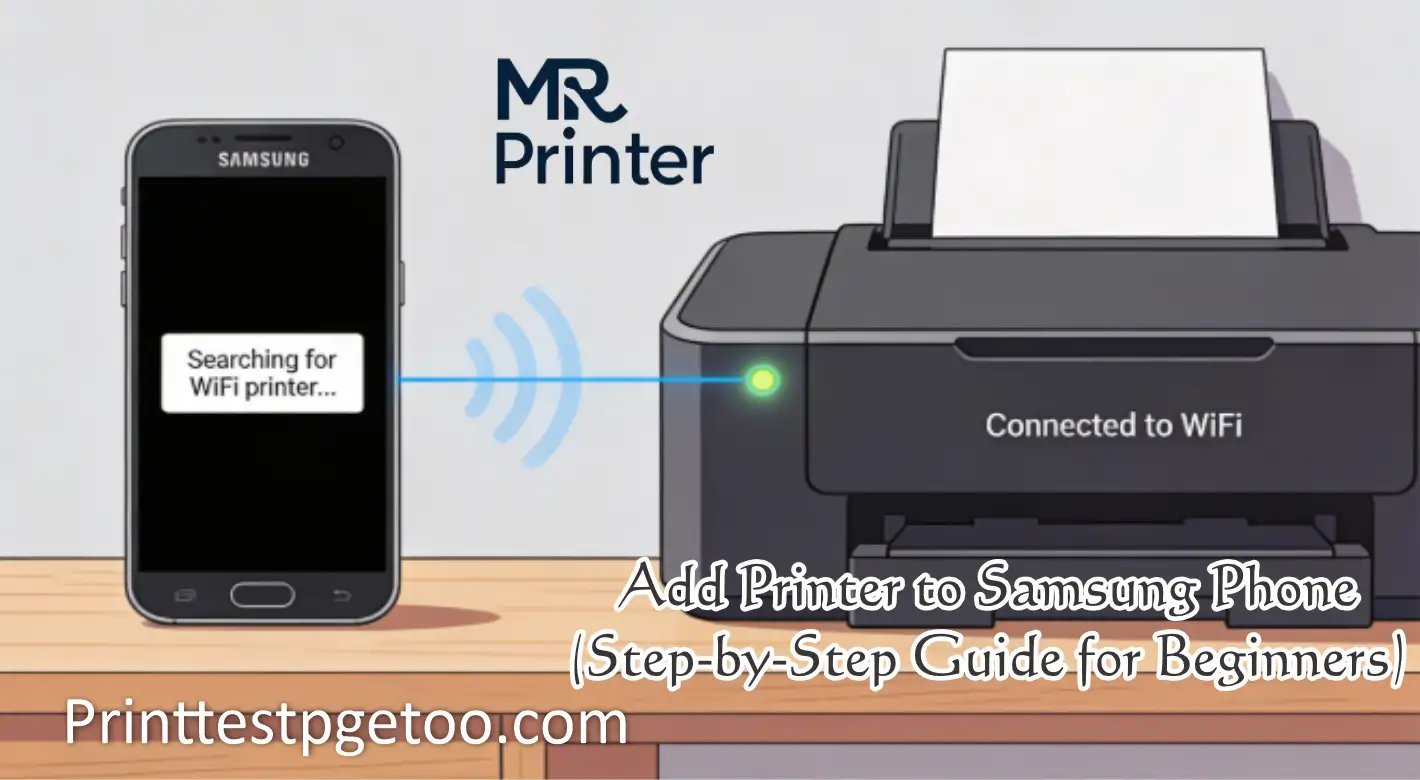
The first time I tried to add a printer to my Samsung phone, I got stuck for almost 20 minutes. The printer was on, WiFi was working, but my phone could not find it. Later I realized the problem was just one small setting. If you are facing the same issue, don’t worry. This guide will help you add a printer to your Samsung phone in a very easy way.
This guide is written for beginners. Follow the steps slowly, and you will be printing in minutes.
Before You Start (Very Important)
- Turn on your printer
- Connect printer to WiFi
- Connect your Samsung phone to the same WiFi
- Make sure paper is inside the printer
If any of these are missing, your phone will not find the printer.
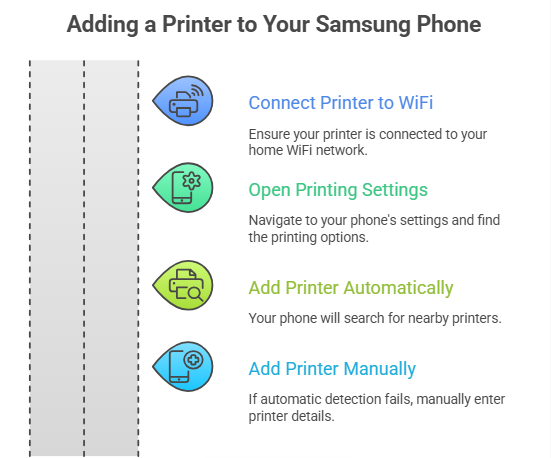
Method 1: Add Printer Automatically (Recommended)
This is the easiest way and works for most people.
- Open Settings on your Samsung phone.
- Search for Printing.
- Tap Printing → Samsung Print Service Plugin.
- Turn the plugin ON if it is off.
- Wait a few seconds for the printer to appear.
If your printer appears, tap it once and you are done.
Method 2: Add Printer Manually (When Auto Does Not Work)
Sometimes the printer does not show automatically. This is normal.
- Go to Settings → Printing.
- Tap Add printer.
- Select Add by IP address.
- Enter the printer IP (shown on printer screen or router).
- Save and wait for connection.
Manual method works best for office and network printers.
Method 3: Add Printer Using USB Cable
If WiFi is not working, USB is the fastest backup method.
- Connect printer to your phone using USB OTG cable.
- Turn on the printer.
- Your phone will detect the printer automatically.
- Open a document and tap Print.
Common Mistakes (Avoid These)
- Phone and printer on different WiFi networks
- Printer in sleep mode
- Plugin turned off by mistake
- Old printer firmware
Fixing these solves most problems.
Helpful Guides (Read If You Are Stuck)
If you want to print after adding the printer, read our guide on
how to print from Samsung phone.
If your printer still does not show, follow this fix guide for
Samsung Print Service Plugin not working.
Samsung also explains how to connect phones and printers on its
official Samsung Support page with updated instructions for Galaxy users.
If you want to make sure your printer is ready, you can
run a quick printer test here before moving to the FAQs.
FAQs
Why is my Samsung phone not finding my printer?
Most of the time, the phone and printer are connected to different WiFi networks. Connect both to the same network and try again.
Do I need WiFi to add a printer to Samsung phone?
No. You can also add a printer using USB cable if WiFi is not available.
Can I add more than one printer to Samsung phone?
Yes. You can add multiple printers and choose any one when printing.