Why Learn About Printer Nozzles?
Most people don’t think about printer nozzles until their prints suddenly turn streaky, faded, or completely blank. After spending more than 16 years repairing and diagnosing inkjet printers, I can say confidently that nozzles are responsible for more print-quality problems than anything else inside a printer. When they misfire, clog, or dry out, the results show instantly on paper.
The good news is that most nozzle-related problems can be identified—and often fixed—without opening the machine or calling a technician. A simple test page can reveal more about the health of your printer than people realize.
Before we get into troubleshooting, let me explain how nozzles work in a way that reflects real-world behavior, not just textbook definitions.
What Printer Nozzles Actually Do (And Why They Fail More Than You Think)
A printer nozzle is a microscopic opening on the print head that sprays tiny drops of ink in carefully controlled patterns. These droplets are extremely small—often smaller than a human hair—which is why even the slightest blockage can disrupt printing.
Different brands rely on different nozzle technologies:
1. Thermal Bubble Nozzles (HP, Canon)
These use heat to form a vapor bubble that pushes ink out.
Why they fail:
-
They’re sensitive to dried pigment ink.
-
Heat cycles can eventually burn out individual nozzles.
-
If the printer sits unused for weeks, the ink thickens inside the chamber.
Real Case Example:
I once checked a Canon MG series printer that printed perfectly on day one, then produced faint grey text on day three. The user thought the cartridge was faulty. It turned out the thermal chamber overheated because the ink level fell too low. A new cartridge fixed the issue instantly—but the nozzle damage was permanent.
2. Piezoelectric Nozzles (Epson)
These use vibrations from a piezo crystal to eject ink.
Why they fail:
-
Epson ink dries harder, making clogs more stubborn.
-
Piezo heads don’t burn out easily—but they clog more easily than thermal models.
-
Environmental dust affects them more.
Mini Case:
I’ve seen Epson L-series printers where yellow printed perfectly but cyan had dotted gaps. A quick nozzle cleaning didn’t help, but printing a full-page solid cyan image warmed the ink enough to clear the blockage—something Epson users often don’t know.
Laser Printers Don’t Have Nozzles
But test pages still help diagnose:
-
Drum issues
-
Toner distribution problems
-
Transfer roller inconsistencies
Common Problems Caused by Nozzle Issues (Based on Real Repairs)
Here are the issues I see most often—and what they usually mean.
1. Streaky or Washed-Out Text
This is nearly always a partially clogged black nozzle.
What it typically looks like:
-
Lines missing on the left or right side
-
Grey, patchy text
-
Sharp edges on one side and fuzzy on the other
If it’s HP or Canon, the clog is usually mild. On Epson, it’s often deeper.
2. Blurry or Soft Photos
This happens when color droplets don’t land exactly where they’re supposed to.
Common causes include:
-
Misalignment due to dried ink
-
Vibrations affecting piezo nozzles
-
Over-saturated paper absorbing ink too quickly
3. Wrong Colors (Color Mismatch)
Incorrect shades—like getting purple instead of blue—usually mean:
-
A specific color (cyan, magenta, yellow) has a blocked nozzle
-
The cartridges were recently refilled and air entered the chamber
-
Color channels are misaligned
4. Horizontal White Gaps
When text or photos have clean white lines running across them, it’s almost always dried ink inside one nozzle row.
Technician Note:
If gaps appear at the exact same position every time, it’s a physical clog.
If they shift around, it’s an ink-flow issue.
Why Running a Test Page Is the First Step—Not an Optional One
A proper test page is the fastest way to interpret what’s happening inside your printer.
When I diagnose a printer—whether at home, in an office, or during remote support sessions—the very first thing I ask for is a test page. It reveals:
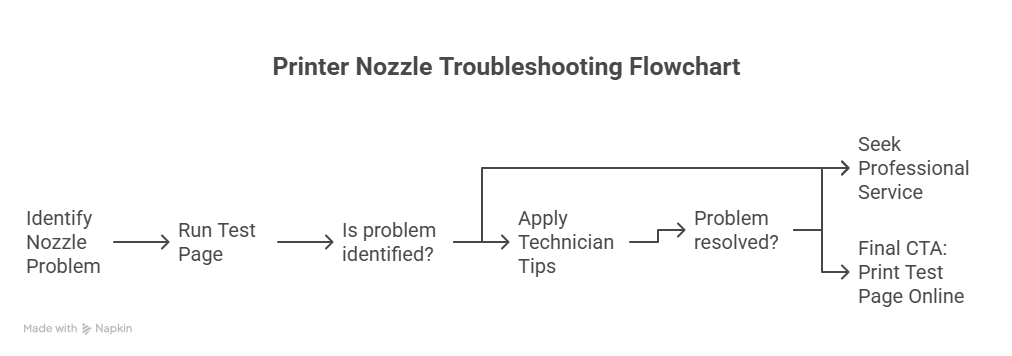
✔ Nozzle health
You can see which nozzles are firing or missing.
✔ Color accuracy
A professional test page includes pure CMYK blocks which immediately reveal inconsistencies.
✔ Alignment
Misaligned text or slanted lines tell you the print head needs calibration.
✔ Ink starvation
If colors fade gradually from top to bottom, the ink isn’t reaching the nozzles consistently.
Most users only look for streaks, but a technician can read much more from that one sheet.
How to Use an Online Test Page (And What the Results Mean)
Using an online tool is simpler than digging through printer menus.
How to Print a Test Page Online
-
Open Print Test Page Tool in any browser.
-
Click Print Test Page (no downloads or installation).
-
Compare the printed sheet with the expected patterns.
How to Read the Results Like a Technician
If black text looks faded:
→ Black nozzles are starting to dry. Clean them immediately before they worsen.
If one color block is dull or missing:
→ That color nozzle is blocked. Epson users: this is very common after 7–10 idle days.
If lines look crooked:
→ Your print head needs alignment.
If everything looks patchy after a new cartridge installation:
→ There may be trapped air inside the ink chamber. Clean cycle usually helps.
Expert Troubleshooting Tips (Based on Practical Experience)
These aren’t generic tips—you won’t find some of them on standard support pages.
1. Print a Full-Page Solid Color
For stubborn Epson nozzles, printing a full sheet of pure cyan or magenta often softens dried ink enough to clear blockages.
2. Avoid Multiple Back-to-Back Cleanings
This is a mistake many users make.
Oversaturated cleaning cycles can:
-
Waste large amounts of ink
-
Cause thermal head overheating (HP/Canon)
-
Cause ink flooding inside Epson waste pads
I recommend no more than 2 cleanings at a time.
3. Use the Printer Weekly
Inkjet printers hate inactivity.
Even printing a single black line every week can prevent clogs.
4. Check Your Paper Type
Using photo paper settings on plain paper can make prints look smudged or blurry — it’s not a nozzle issue; it’s simply an ink density mismatch.
Fix Your Printer Faster by Understanding What the Test Page Is Telling You
Once you know how nozzles behave, identifying the problem becomes straightforward. You don’t need guesswork, and you don’t need a technician for 90% of these issues. A simple test page will tell you if the problem is:
-
A clogged nozzle
-
A misalignment
-
Incorrect ink flow
-
A driver setting
-
Or simply dried ink from inactivity
Troubleshooting becomes quicker, cleaner, and far less frustrating.
FAQs (Expanded with Practical, Real-World Answers)
Is the online test page safe to use?
Yes. It works entirely inside your browser. Nothing is downloaded, and no personal data is collected.
How often should I run a nozzle test?
For inkjet printers:
-
Weekly if you print rarely
-
Every 3–5 days for Epson printers (they clog more easily)
Why does my printer clog when I don’t use it?
Ink dries inside the nozzles, especially in dry climates.
Epson pigment ink dries faster.
HP dye ink dries slower but still clogs after long idle periods.
Why does my printer show perfect test lines but photos still look blurry?
This usually means the paper type or color profile is mismatched—not the nozzles.
Can refilled cartridges cause nozzle issues?
Yes, especially if air bubbles enter the ink chamber.
You may need 1–2 cleaning cycles after installing refilled cartridges.