Samsung Printer WiFi Setup Guide (Real Fixes from a Technician)
Over the years, I have helped many home users and small offices connect their Samsung printers to WiFi. And I can honestly say this — most wireless setup problems are not serious technical faults. They usually happen because of one small missed step.
Sometimes the WiFi password is typed incorrectly. Sometimes the router is too far. And very often, users change their router and forget that the printer still remembers the old network.
If your Samsung printer is not connecting to WiFi, keeps showing offline, or disconnects again and again, this guide will walk you through the same process I use when fixing printers in real situations.
Before Starting Samsung Printer WiFi Setup
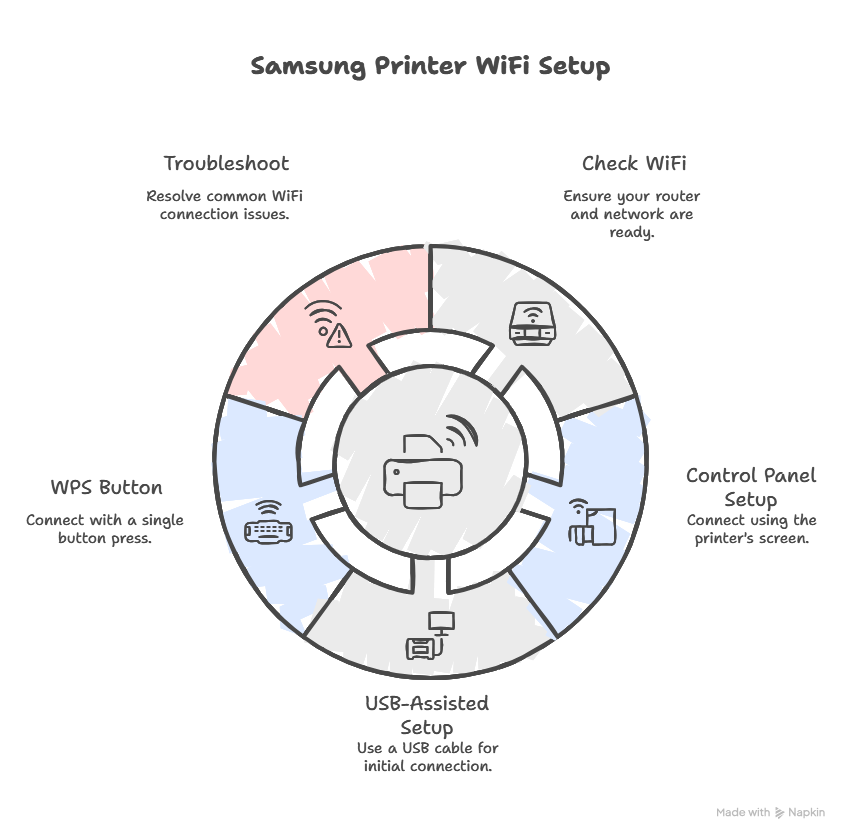
Before we open any settings, I always check these basic things first. These save time and prevent frustration.
- Make sure the router is turned on and internet light is stable.
- Keep the printer within a reasonable distance (avoid thick concrete walls).
- Write down the exact WiFi password.
- Confirm that the router is broadcasting a 2.4GHz network (important for many Samsung printers).
If these basics are correct, we can move to the actual Samsung printer wireless setup.
Method 1: Standard Wireless Setup from Printer Panel
This is the most common Samsung printer WiFi setup method and works for most models.
- Turn on the printer and wait until it becomes ready.
- Open the Menu or Network settings from the control panel.
- Select Wireless or WiFi Setup Wizard.
- Choose your WiFi network name (SSID) from the list.
- Enter the password carefully.
- Press confirm and wait for connection.
If setup succeeds, the WiFi light becomes steady and the screen may show “Connected.”
If the network does not appear in the list, move to the troubleshooting section below.
Method 2: USB-Assisted WiFi Setup (My Preferred Method)
When someone tells me their Samsung printer won’t connect to WiFi, I often use the USB method. It reduces errors and forces proper configuration.
- Connect the printer to a computer using a USB cable.
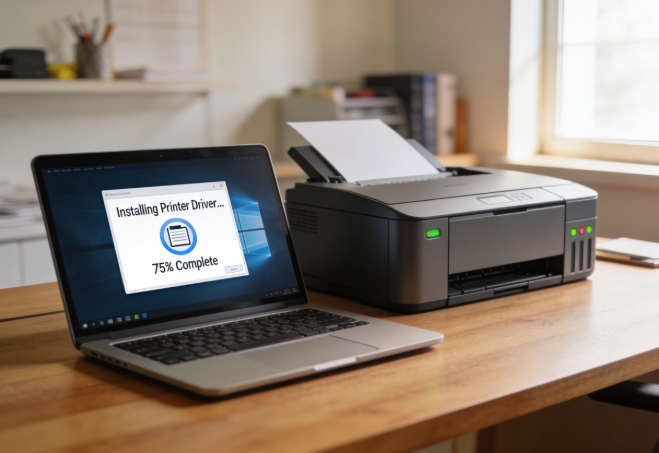
- Install the Samsung printer driver package.
- Choose Wireless Setup during installation.
- Select your WiFi network.
- Enter your password.
- Complete setup and remove the USB cable.
This method is especially useful when the printer fails to detect WiFi automatically.
Method 3: WPS Button Setup
If your router has a WPS button, this is the fastest Samsung printer WiFi connection method.
- Press the WPS button on your router.
- Within two minutes, press the WPS button on the printer.
- Wait for the wireless indicator to stabilize.
Timing is important here. If it fails, simply repeat the process.
How I Confirm the Printer Is Properly Connected
After WiFi setup, I always print a network configuration page. This page tells me:
- The printer’s IP address
- Connection status
- Signal strength
If the printer has a valid IP address, it is successfully connected to WiFi.
If you plan to print from your mobile device, you can follow our complete
Samsung phone printing guide to finish mobile setup correctly.
Advanced WiFi Setup Tips Most Users Ignore
When I visit homes or small offices for Samsung printer WiFi setup, I often notice that the basic connection works, but the printing experience is unstable. The printer connects today and disconnects tomorrow. In most cases, the problem is not the printer — it is the network environment.
Here are a few practical adjustments I recommend to users who want a stable and long-term wireless printing setup.
Keep the Printer on a Fixed Location
Printers should not be moved frequently. Every time you move the printer far from the router, signal strength changes. Weak signal causes slow printing, offline errors, or random disconnections. If possible, keep the printer in a semi-permanent location within good WiFi coverage.
Avoid Connecting Too Many Devices to the Same Band
If your router supports both 2.4GHz and 5GHz networks, try to connect heavy devices (like TVs or gaming consoles) to 5GHz and keep the printer on 2.4GHz. This reduces network congestion and improves Samsung printer wireless stability.
Assign a Reserved IP Address
This is something many technicians do but home users ignore. Inside your router settings, you can assign a reserved IP address to the printer. This prevents the IP from changing every time the router restarts. When the IP keeps changing, computers may show the printer as offline even though it is connected.
Restart Router After Setup
After completing Samsung printer WiFi setup, I usually restart the router once. This refreshes network assignments and ensures the printer registers properly on the network.
These small steps may sound simple, but they prevent many long-term WiFi printing problems.
Troubleshooting Samsung Printer WiFi Problems (Real-World Fixes)
1. Printer Cannot Find WiFi Network
What I see: The printer shows no available networks.
Common cause: Router broadcasting only 5GHz network.
Fix:
- Enable 2.4GHz band in router settings.
- Move printer closer to router.
- Restart both router and printer.
2. Incorrect Password Error
What happens: Setup fails even though password looks correct.
Cause: Case-sensitive mistake or hidden space.
Fix:
- Re-type password carefully.
- Avoid extra spaces.
3. Printer Connected but Showing Offline
What I check first: Driver and device settings.
Cause: IP address changed or driver outdated.
Fix:
- Restart printer and router.
- Reinstall printer driver.
- Set printer as default in system settings.
4. WiFi Keeps Disconnecting
Cause: Weak signal or router interference.
Fix:
- Place router in open space.
- Avoid metal objects near printer.
- Update router firmware if outdated.
5. Router Changed Recently
This is extremely common. When users replace their router, the printer still remembers the old network.
Fix:
- Reset printer network settings.
- Repeat full Samsung printer WiFi setup.
Official Help and Printer Test
For manufacturer-level instructions, Samsung provides wireless setup guidance on its
official Samsung Support page.
After completing the setup, I always recommend testing your printer before starting important work. You can
run a quick printer test here to confirm everything is functioning correctly.
FAQs
Can Samsung printers connect to 5GHz WiFi?
Many older models work best on 2.4GHz. If 5GHz connection fails, switch your router band.
Do I always need USB for WiFi setup?
No, but USB setup is more stable if automatic wireless setup fails.
Why is my Samsung printer connected but not printing?
This usually indicates driver or IP configuration issues. Reinstalling the driver often solves it.
How do I reset Samsung printer network settings?
Open the network menu on the printer and choose “Reset Network.” Then perform WiFi setup again.