Samsung Phone Printing Complete Guide (WiFi, USB & Troubleshooting)
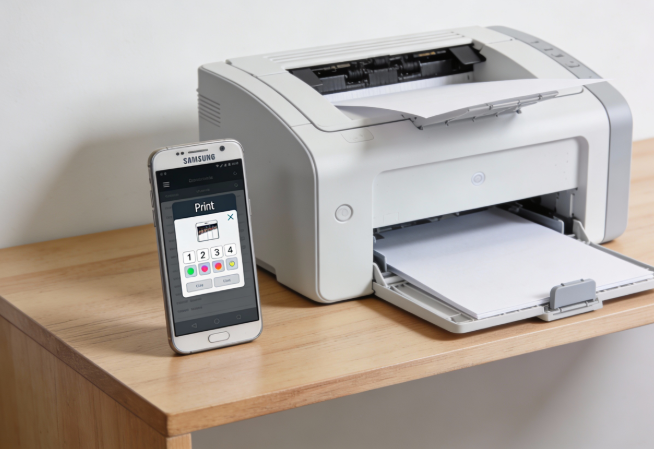
Printing from a Samsung phone should be simple, but many users face problems. Sometimes the printer does not show. Sometimes the print option disappears. Other times the phone says printing started, but nothing happens. If you are confused or frustrated, this complete guide will help you.
This article is written in very simple English. Even a beginner can follow it. We will explain how Samsung phone printing works, how to set it up, and how to fix common problems step by step.
This is the main guide for Samsung phone printing. All related articles are connected to this page.
How Printing Works on a Samsung Phone
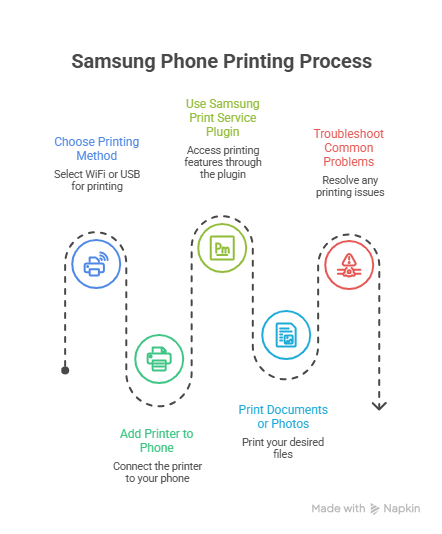
A Samsung phone cannot print alone. It needs three things:
- A working printer
- A connection method (WiFi or USB)
- A printing service or app
If any one of these is missing, printing will fail. Most problems happen because one small step is skipped.
Ways to Print from a Samsung Phone
WiFi Printing (Most Common)
This is the easiest method. Your phone and printer must be connected to the same WiFi network.
For full steps, read this guide:
how to print from Samsung phone.
USB Printing (Without WiFi)
If WiFi is not available, you can print using a USB cable and OTG adapter. This method is very reliable.
How to Add a Printer to Samsung Phone
Before printing, the printer must be added to your phone. Many users skip this step and then printing does not work.
Samsung phones can add printers automatically or manually.
Follow this beginner guide:
add printer to Samsung phone.
Samsung Print Service Plugin Explained
Samsung Print Service Plugin allows your phone to communicate with printers. If this plugin is off or broken, printing will fail.
Most printing issues are caused by this plugin.
Read the full fix guide here:
Samsung Print Service Plugin not working.
Troubleshooting Samsung Phone Printing Problems
This section fixes the most common problems. Read carefully and apply the steps.
Problem 1: Printer Not Showing on Phone
What happens: Printer does not appear in print list.
Why: Phone and printer are on different WiFi networks.
Fix:
- Connect both to the same WiFi
- Restart printer
- Turn WiFi off and on
Problem 2: Print Option Missing
What happens: No Print option appears.
Why: Print Service Plugin is disabled.
Fix:
- Go to Settings → Printing
- Enable Samsung Print Service Plugin
- Restart phone
Problem 3: Printer Connected but Not Printing
What happens: Print job starts but nothing prints.
Why: Print queue stuck.
Fix:
- Cancel all print jobs
- Restart phone and printer
- Print one page first
Problem 4: Blank Pages Printing
What happens: Blank paper comes out.
Why: Ink/toner low or wrong paper size.
Fix:
- Check ink or toner
- Select correct paper size
- Run a test page
Problem 5: Printing Worked Before but Stopped
What happens: Printing suddenly fails.
Why: Phone update or plugin cache issue.
Fix:
- Update print service plugin
- Clear plugin cache
- Restart phone
Official Help and Printer Test
Samsung also explains mobile printing on its
official Samsung Support page.
If you want to confirm that your printer is working correctly, you can
run a quick printer test here before checking the FAQs.
FAQs
Can all Samsung phones print?
Yes. Almost all Samsung Galaxy phones support printing.
Do I need internet to print?
No. Local WiFi or USB connection is enough.
Which printers work with Samsung phones?
Most modern WiFi printers work with Samsung phones.
Why does printing stop after phone update?
Updates can disable print service or cause cache issues.
Is Samsung Print Service Plugin free?
Yes. It is free to use.
Can I print photos and documents?
Yes. Samsung phones can print both photos and documents.