How to Print a Test Page on Samsung Printers (All Models Guide)
A test page helps you understand whether the problem is with ink, toner, alignment, or printer settings.
In this guide, you will learn simple and clear ways to print a test page on Samsung printers.You can also use an online print test page tool
if you want to check print quality quickly without changing printer settings.
Quick Way to Print a Test Page on Samsung Printers
Most Samsung printers allow you to print a test page directly from the printer or through your computer.
The easiest way is to use the printer settings on your computer.
If that does not work, you can try using the printer buttons.
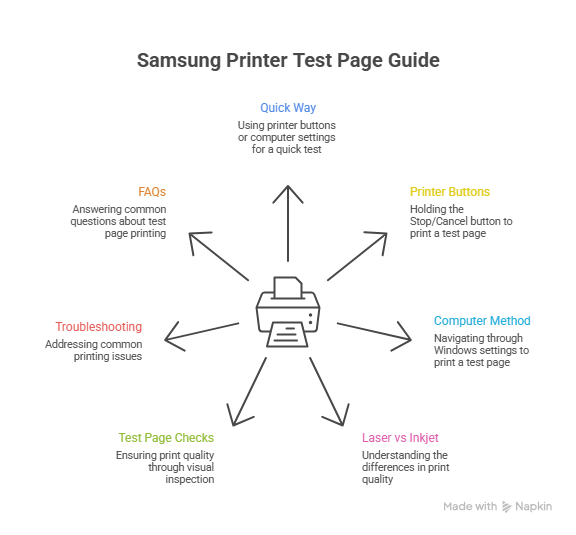
Method 1: Print a Test Page Using Printer Buttons
Some Samsung printers have a simple button option for printing a test page.
This method is useful when your computer is not connected properly.
- Turn on your Samsung printer.
- Press and hold the Stop or Cancel button for a few seconds.
- Release the button when the printer starts printing.
Note: Not all Samsung models support this method. Newer models may require software settings.
Method 2: Print a Test Page Using a Computer
This is the most reliable method and works for almost all Samsung printers.
For Windows Users
- Open Control Panel.
- Click on Devices and Printers.
- Right-click your Samsung printer and select Printer Properties.
- Click Print Test Page.
If you want more simple printing help, you can explore these
printing how-to guides for home and office use.
Laser vs Inkjet Samsung Printers
Samsung laser printers use toner instead of liquid ink.
Their test pages usually show text sharpness and toner density.
Ink-based Samsung printers focus more on color flow and alignment.
If colors look faded or broken, it may be time to clean the print heads.
You can learn how different brands handle test pages in this detailed guide on
printer brands and test page behavior.
What to Check on a Samsung Test Page
After printing the test page, look at the following things carefully:
- Text should be clear and easy to read.
- Lines should be straight, not broken.
- Colors should be solid without white gaps.
If something looks wrong, the test page gives you a clear sign that maintenance is needed.
When a Test Page Does Not Print
Sometimes the test page does not print at all.
This can happen due to driver problems or connection issues.
In such cases, it is best to check the official
Samsung printer support page for model-specific instructions.
Many users also find helpful step-by-step video guides on YouTube that show how to print a test page on Samsung printers.
Frequently Asked Questions
Why should I print a test page on my Samsung printer?
A test page helps you find printing problems early.
It shows whether the issue is with ink, toner, or printer settings.
How often should I print a test page?
You should print a test page when print quality drops or after changing ink or toner.
Can I print a test page without a computer?
Yes, some Samsung printers allow test page printing using printer buttons, but not all models support this.
What if my Samsung printer test page is blank?
A blank test page usually means low ink, empty toner, or a clogged print head.
Is printing a test page safe for my printer?
Yes, printing a test page is safe and recommended for basic printer maintenance.
Final Thoughts
Printing a test page on a Samsung printer is simple and very helpful.
It saves time and helps you understand printing problems before they get worse.
By following these steps, you can keep your printer working smoothly at home or in the office.